
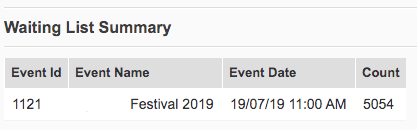
If you have activated the waitlist for your event, you can use the Waiting List Summary report for a quick snapshot of the total number of registrations.
-
Log In to your Moshtix Control room. Not sure how? See our helpful, 'How to Log In' guide here.
-
Once logged in, navigate to Reports > Reporting Dashboard via the menu on the left hand side.
-
Change the Report Type to Waiting List Summary.
-
Choose the"Selected Events" option and type in your event.
Here is an example of how this might look.
Want to use the Event Waitlist feature and not sure how?
Find our helpful how to guide here.
How to Access your Event Waitlist Subscriber List:
- Log into the Control Room
- Click Account
- Click Manage Membership
- Select the group for the Event Name (Waitlist)
- Select / download the list of signups.
Comments
0 comments
Article is closed for comments.