
1) Log In to your Moshtix Control room. Not sure how? See our helpful, 'How to Log In' guide here.
2) Once logged in, navigate to Promote > Export Subscribers via the menu on the left hand side.
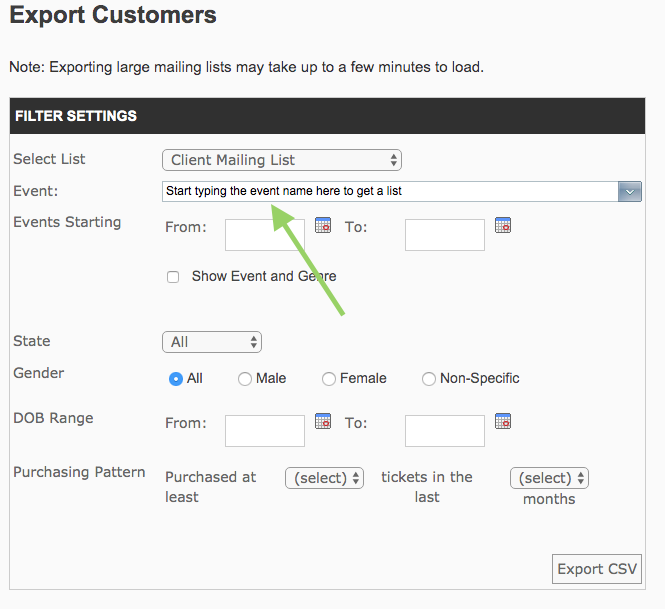
You have two options here. You can either export your entire opt in list by simply clicking on EXPORT CSV and accepting the Customer Privacy prompts.
Or if you would like the data to be event specific, type the relevant event into the drop down box as per the below.
If you need events and genres displayed in this data, click on the box next to Show Event and Genre.
Comments
0 comments
Please sign in to leave a comment.