
There may come a time when you (for a variety of reasons) need to temporarily remove your event from public view. To do this, follow the below steps:
1) Log In to your Moshtix Control room. Not sure how? See our helpful, 'How to Log In' guide here.
2) Once logged in, select the event in your list you wish to unapprove.
3) Click on the PREVIEW & APPROVE tab underneath your Event Name/ID.

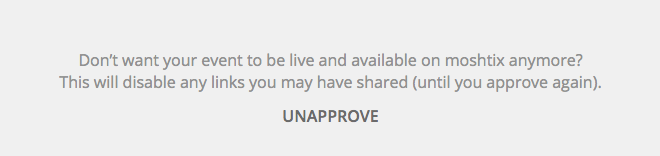
4) Scroll to the bottom of the page and click on UNAPPROVE.
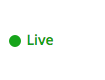
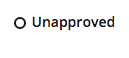
On the main event screen when you first log in, your event status will change from Live to Unapproved.
If you need to cancel your event, please email us at clientsupport@moshtix.com.au for our assistance.
Comments
0 comments
Please sign in to leave a comment.