
1) Log In to your Moshtix Control room. Not sure how? See our helpful, 'How to Log In' guide here.
2) Once logged in you will see a snapshot of your upcoming events. If you don't have any upcoming events you will need to change to past for an event to appear which you can copy.
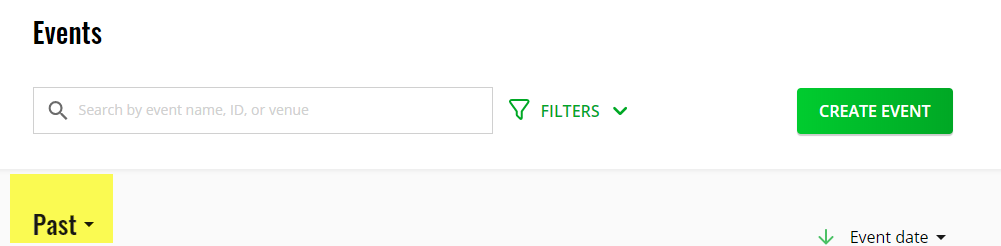
3) From here you simply click on the 3 dots to the right of the event you wish to copy and click on Duplicate. The system will then ask you for the name of the new event.
4) You will then be taken to the Event Build of the new event. Ensure you update the date and time of the event, the announce, ticket types and offercodes.
HELPFUL TIP
If you have a lot of events, save yourself time by creating a TEMPLATE event. Set the date into the future and keep it unannounced so you can copy it each time.
Comments
0 comments
Please sign in to leave a comment.